Common Active Directory Issues and How I Fixed Them in My Home Lab
Common Active Directory Issues and How I Fixed Them in My Home Lab
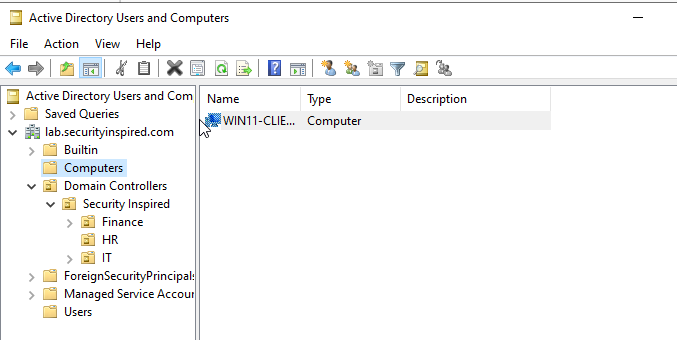
Weeks 1 and 2 were about building. I set up the VirtualBox environment, configured DC01, joined WIN11-CLIENT01 to the domain, and got Active Directory running on lab.securityinspired.com. Everything worked because I made it work — every decision was deliberate, every step was mine.
Week 3 was different. The task was to break things intentionally and then diagnose them cold, the way a support engineer or SOC analyst would if a ticket landed on their desk. No prior context. No safety net. Just symptoms, tools, and logs.
What I realised quickly is that breaking things randomly teaches you nothing. If you do not know exactly what you changed, you will fix it by guessing — and guessing is not a transferable skill. The discipline this week was controlled failure: one change at a time, with a clear hypothesis about what it would break and why.
Four scenarios. Four fixes. Here is what happened.
Scenario 1: DNS misconfiguration
The problem
A user reports they cannot access anything on the domain. No file shares, no domain login, nothing resolves.
What I changed
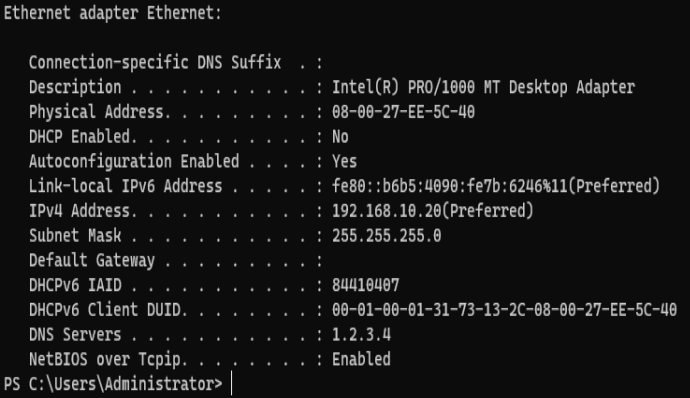
On WIN11-CLIENT01, I changed the preferred DNS server from 192.168.10.10 (DC01) to 1.2.3.4 — an IP that does not exist on this network.
netsh interface ip set dns "Ethernet" static 1.2.3.4
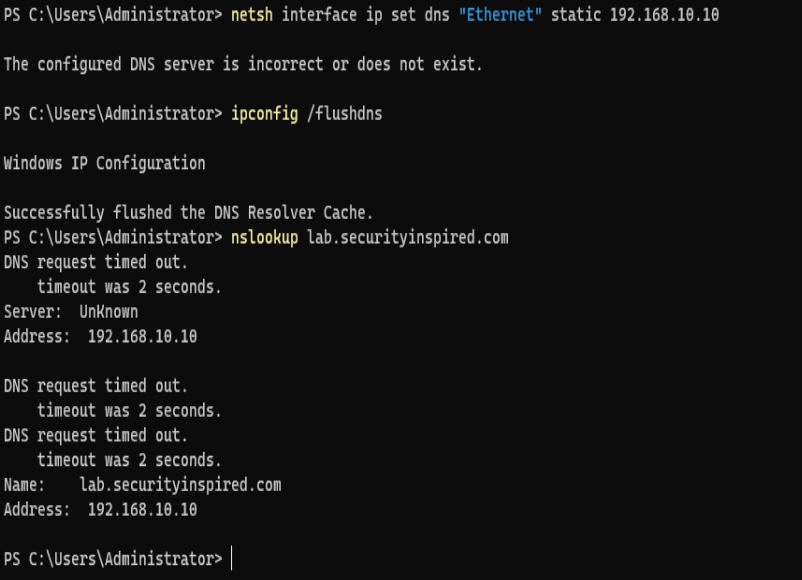
Windows flagged it immediately: “The configured DNS server is incorrect or does not exist.” That warning is worth noting — the OS itself is telling you something is wrong at the point of configuration, before anything breaks downstream.

ipconfig /all confirmed the change had taken effect. DNS Servers now showed 1.2.3.4.
What I observed
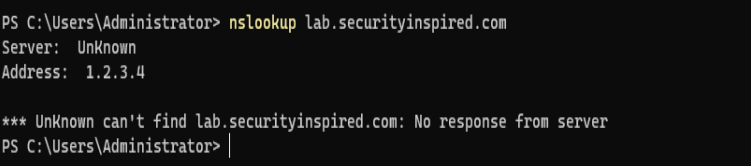
nslookup lab.securityinspired.com
Result: “Unknown can’t find lab.securityinspired.com: No response from server.” The server field showed 1.2.3.4 — the client was querying the wrong address and getting nothing back.
ping lab.securityinspired.com
Result: “Ping request could not find host lab.securityinspired.com.” The hostname could not be resolved at all, so the ping never even reached the network layer.

Investigation
ipconfig /all was the first tool — it showed the wrong DNS server immediately. In a real support scenario, this is often the first thing you check when a user reports domain or connectivity issues.
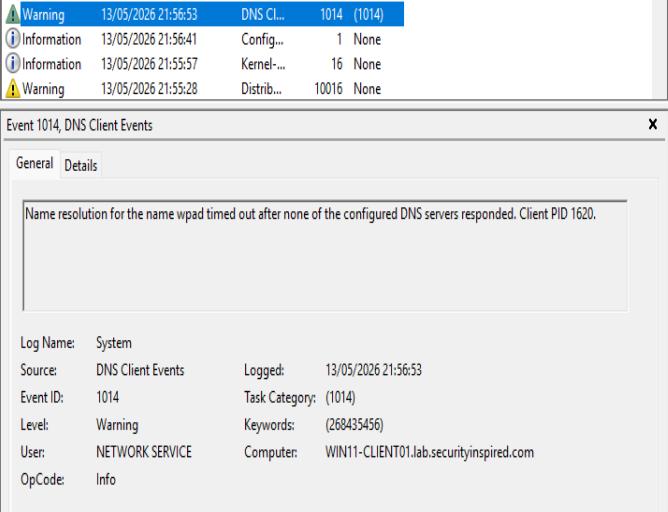
In Event Viewer on WIN11-CLIENT01, under Applications and Services Logs → Microsoft → Windows → DNS Client Events → Operational (which needs to be enabled manually — it is off by default), Event ID 1014 appeared:
“Name resolution for the name wpad timed out after none of the configured DNS servers responded.”
This is the client-side confirmation that DNS queries were going out and getting no response. The event also shows which process was affected (Client PID 1620) and timestamps the failure precisely.
Root cause
DNS is the foundation of Active Directory. Authentication, name resolution, Group Policy delivery, domain controller discovery — all of it depends on the client being able to reach a DNS server that knows about the domain. Pointing the client at a non-existent DNS server effectively cuts it off from the domain entirely, even if the network itself is fine.
Fix
netsh interface ip set dns "Ethernet" static 192.168.10.10
ipconfig /flushdns
After flushing the cache, nslookup lab.securityinspired.com timed out twice before resolving — the stale cache clearing in real time. Eventually it returned the correct address: 192.168.10.10. That brief delay is normal and worth understanding: in production, DNS cache propagation means a fix does not always take effect instantly.
Key lesson
DNS failure does not look like a DNS problem to the user. It looks like “nothing works.” The symptom is total — no domain login, no file shares, no name resolution — but the cause is a single misconfigured field. ipconfig /all takes ten seconds and tells you immediately whether DNS is the issue.
Scenario 2: User login failure
The problem
A user reports they cannot log in. The error message reads: “Your account has been disabled. Please see your system administrator.”
What I changed
I created a test user (testuser01) in Active Directory Users and Computers under the IT organisational unit, then disabled the account immediately after creation.
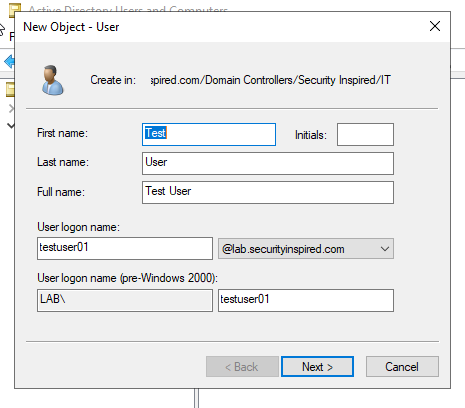
New-ADUser -Name "Test User" -SamAccountName "testuser01" `
  -AccountPassword (ConvertTo-SecureString "Password123!" -AsPlainText -Force) -Enabled $true

Disable-ADAccount -Identity testuser01
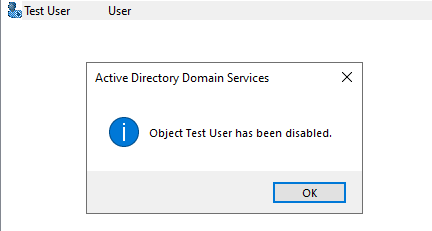
The ADUC dialog confirmed: “Object Test User has been disabled.”
What I observed
Attempting to log in as testuser01 on WIN11-CLIENT01 produced a clear error on the Windows login screen: “Your account has been disabled. Please see your system administrator.” No ambiguity — the OS surfaces the exact reason.

Investigation
I opened Event Viewer on WIN11-CLIENT01 and navigated to Windows Logs → Security. One important note: Event Viewer must be run as Administrator to access the Security log. Running it as a standard user shows the interface but not the events — something that is easy to miss and causes unnecessary confusion.
Before any events appeared, I had to verify that audit policy was configured to capture logon failures:
auditpol /get /subcategory:"Logon"
auditpol /get /subcategory:"Account Lockout"


Both returned “Success and Failure” — auditing was already enabled, which meant the Security log would capture failed logon attempts.
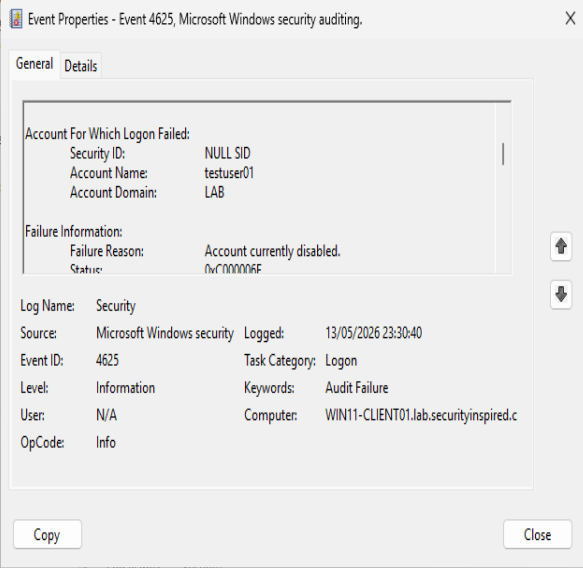
Filtering for Event ID 4625 surfaced multiple failures. The Security log showed a cluster of failures between 23:29 and 23:32, followed by a successful 4624 at 23:33 — a clean before-and-after visible at a glance.
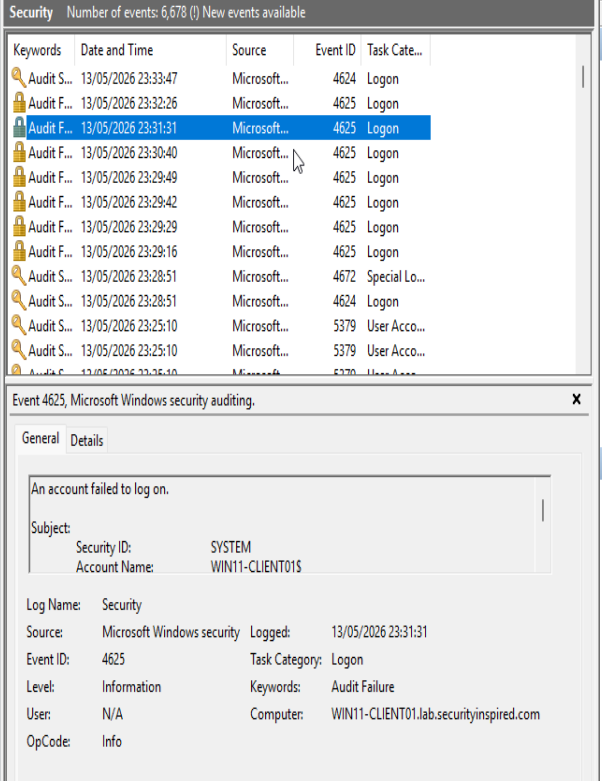
Two events were particularly useful when expanded:
testuser01 — Failure Reason: “Account currently disabled.” Status code 0xC000006F.
hr.user1 — Failure Reason: “Unknown user name or bad password.” Status code 0xC000006D.

The status codes matter. They tell you not just that a login failed, but why — which determines the correct response. A disabled account needs to be re-enabled. A bad password might mean a reset is needed, or it might indicate a brute-force attempt if there are multiple rapid failures from the same account.
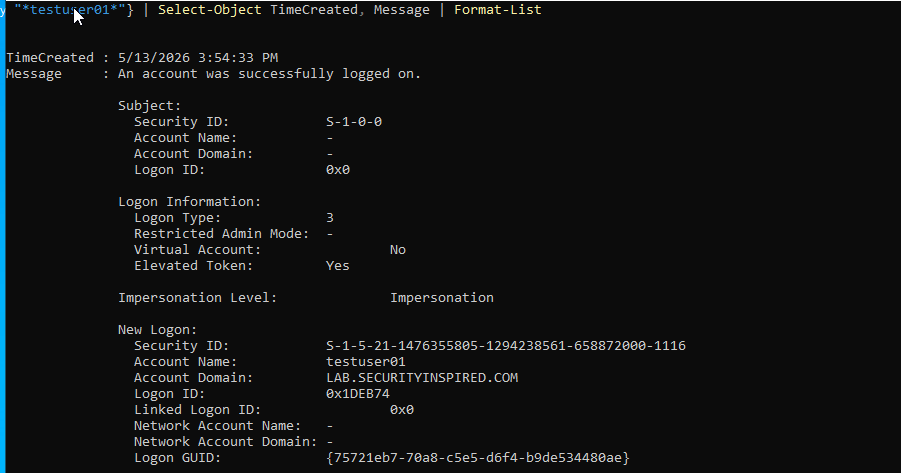
To confirm the fix worked, I queried the Security log via PowerShell for Event ID 4624 (successful logon) filtered to testuser01:
Get-WinEvent -FilterHashtable @{LogName='Security'; Id=4624} |
  Where-Object {$_.Message -like "*testuser01*"} |
  Select-Object TimeCreated, Message | Format-List

The result showed a successful logon at 15:54:33, Logon Type 3 (network logon), with the full domain SID confirming it was a genuine domain authentication rather than a local account fallback.
Root cause
The account was explicitly disabled in Active Directory. Domain authentication checks account status before validating credentials — a disabled account is rejected before the password is even evaluated.
Fix
Enable-ADAccount -Identity testuser01
Key lesson
Failed logons leave a precise audit trail. Event ID 4625 tells you which account failed, from which machine, at what time, and exactly why — down to a status code. In a SOC context, a cluster of 4625 events against the same account in a short window is an indicator worth investigating. A single 4625 for a known user is usually just a forgotten password or a disabled account that needs a five-minute fix.
Scenario 3: Network misconfiguration
The problem
A user reports they cannot reach the server. Domain login fails. No connectivity to anything on the network.
What I changed
On WIN11-CLIENT01, I changed the static IP address to 192.168.20.20 — a completely different subnet from the rest of the lab, which runs on 192.168.10.x.
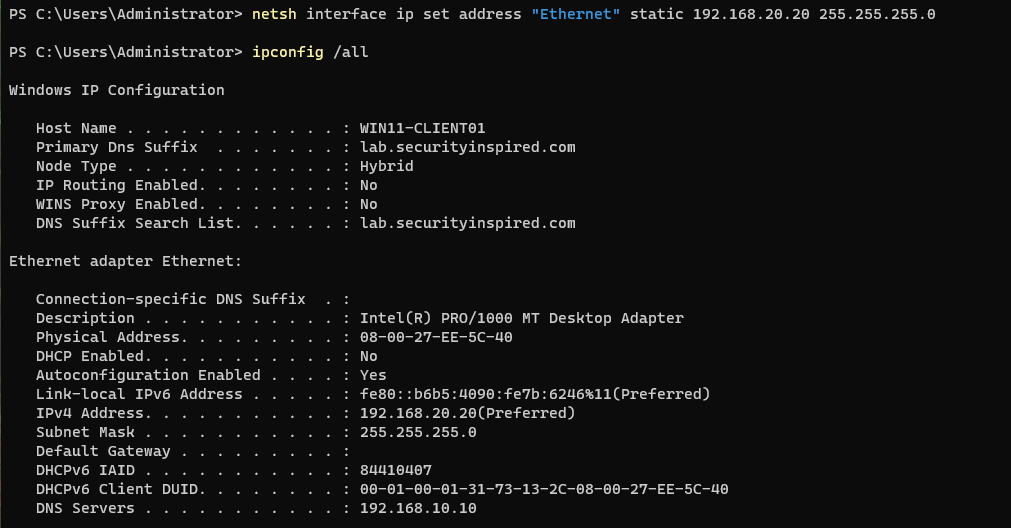
netsh interface ip set address "Ethernet" static 192.168.20.20 255.255.255.0
ipconfig /all confirmed the change: IPv4 Address now showed 192.168.20.20.
What I observed
ping 192.168.10.10
ping dc01.lab.securityinspired.com
nslookup lab.securityinspired.com
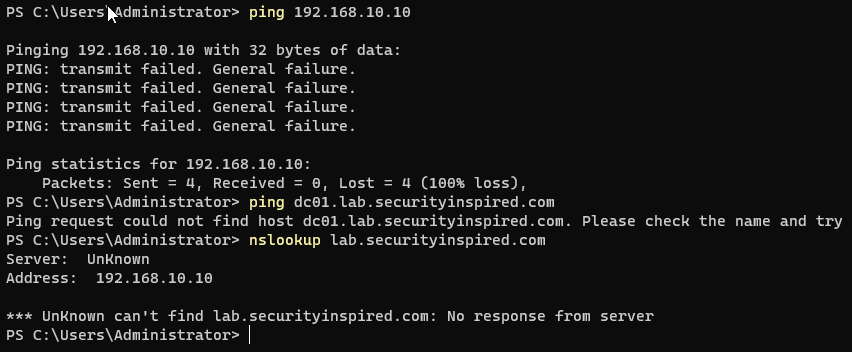
All three failed. Ping to DC01 by IP returned “PING: transmit failed. General failure.” — four packets sent, four lost. Both the hostname ping and nslookup also failed, though the DNS server field in nslookup still correctly showed 192.168.10.10 — pointing at the right place but unable to reach it because of the subnet mismatch.
Investigation
ipconfig is the starting point here. The wrong IP is visible immediately — 192.168.20.20 stands out against a network where everything else is 192.168.10.x.
In Event Viewer on WIN11-CLIENT01 under Windows Logs → System, Event ID 5719 appeared with source NETLOGON:
“This computer was not able to set up a secure session with a domain controller in domain LAB due to the following: An internal error occurred. This may lead to authentication problems.”
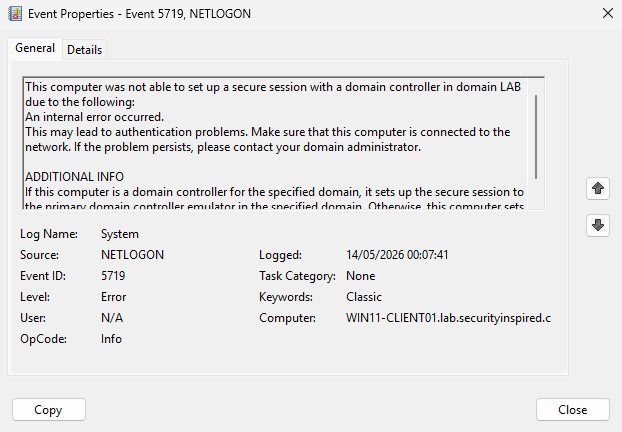
This is the key distinction between this scenario and the DNS scenario. The client was still configured with the correct DNS server address — the problem was not DNS configuration, it was that the client could not physically reach the 192.168.10.x subnet where DC01 lives. Event ID 5719 from NETLOGON tells you the secure channel between client and domain controller has broken down at the network layer.
It is also worth noting that ping to DC01 by IP failed completely here, whereas in Scenario 4 (domain removal) ping still works. That distinction — whether basic IP connectivity exists or not — immediately tells you which layer the problem is at.
Root cause
The client was placed on a different subnet from the domain controller. Devices on 192.168.20.x cannot communicate directly with devices on 192.168.10.x without a router configured to route between them. Since this is an isolated lab with no routing between subnets, the client was effectively cut off.
Fix
netsh interface ip set address "Ethernet" static 192.168.10.20 255.255.255.0
ipconfig /flushdns
After restoring the correct IP, ping 192.168.10.10 returned four successful replies with sub-2ms response times. nslookup lab.securityinspired.com resolved correctly after the cache cleared.

Key lesson
Network issues and domain issues look identical to the user. Both produce “cannot log in” and “cannot reach server.” The difference is visible in two places: ipconfig (is the IP on the right subnet?) and ping by IP address (can the client reach the DC at the network layer at all?). If ping by IP fails, the problem is below DNS — it is routing or addressing. Start there before touching anything else.
Scenario 4: Client removed from domain
The problem
A user reports that domain accounts no longer work on their machine. Only a local account can log in.
What I changed
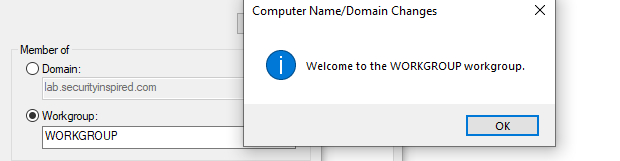
I removed WIN11-CLIENT01 from the domain and moved it to a workgroup via System Properties. The confirmation dialog read: “Welcome to the WORKGROUP workgroup.” The machine required a restart to apply the change.
What I observed
After restart, logging in with a domain account failed — only the local Administrator account was available. Two commands confirmed the machine’s status:
(Get-WmiObject Win32_ComputerSystem).PartOfDomain
Result: False

systeminfo | findstr /i "domain"
Result: WORKGROUP — where it previously showed lab.securityinspired.com.

Investigation
This scenario has an important nuance: basic network connectivity to DC01 was still intact. ping 192.168.10.10 worked fine. This is different from Scenario 3, where ping failed entirely.
The distinction matters because it tells you immediately that the problem is not at the network layer — it is at the trust layer. The machine can reach the domain controller, but it no longer has a valid computer account relationship with the domain.
nltest /sc_query:lab.securityinspired.com
Result: I_NetLogonControl failed: Status = 1722 0x6ba RPC_S_SERVER_UNAVAILABLE

Error 1722 means the RPC service could not establish a connection — in this context, NETLOGON tried to set up the secure channel and found no valid computer account to authenticate with. The machine had left the domain, so its computer account relationship no longer existed.
Root cause
Active Directory domain membership is not just a setting on the client — it is a trust relationship maintained by a computer account on the domain controller. When a machine leaves the domain, that trust is severed. Even if the machine can reach the DC at the network level, it cannot authenticate as a domain member because the secure channel no longer exists.
Fix
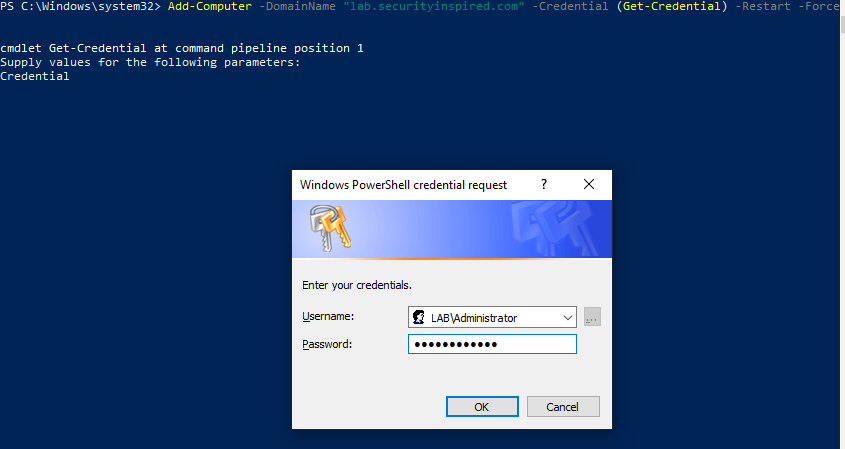
Add-Computer -DomainName "lab.securityinspired.com" -Credential (Get-Credential) -Restart -Force
This prompted for domain Administrator credentials (LAB\Administrator) and restarted the machine automatically after rejoining.
After reboot, three commands confirmed the fix:
(Get-WmiObject Win32_ComputerSystem).PartOfDomain  # True
systeminfo | findstr /i "domain"                    # lab.securityinspired.com
nltest /sc_query:lab.securityinspired.com           # NERR_Success
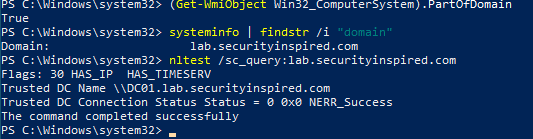
The nltest output also showed Trusted DC Name \\DC01.lab.securityinspired.com — confirming not just that the domain was reachable, but that a specific DC had been selected and the secure channel was established.
Key lesson
When a user can ping the server but still cannot log in with a domain account, the problem is the trust relationship, not the network. The machine may look connected, but without a valid computer account on the domain, it cannot authenticate. nltest /sc_query tells you the state of that relationship in one command — and Add-Computer fixes it in one line.
How I used Event Viewer
One thing this week made clear is that Event Viewer is not useful if you open it passively and browse. The Security log on WIN11-CLIENT01 had 6,678 events by the time I needed to find the 4625 entries. Scrolling through that is not a workflow.
The approach that works: know the Event ID before you open the log, filter immediately, and read the detail fields — not just the summary. The Failure Reason field in a 4625 event, the status code, the account name, the machine name — those are the fields that tell you what actually happened.
Two things also caught me during this process that are worth flagging. First, the Security log requires Event Viewer to be opened as Administrator — running it as a standard user gives you access to the interface but not the events. Second, the DNS Client Operational log is disabled by default and has to be enabled manually before it will capture anything. Both of these are practical details that matter in a real environment.
Commands used this week
ipconfig /all
ipconfig /flushdns
ping <hostname or IP>
nslookup <hostname>
nltest /sc_query:<domain>
systeminfo | findstr /i "domain"

# PowerShell
Get-WmiObject Win32_ComputerSystem | Select PartOfDomain
Disable-ADAccount -Identity <user>
Enable-ADAccount -Identity <user>
Get-ADUser <user> -Properties Enabled, LockedOut
Add-Computer -DomainName <domain> -Credential (Get-Credential) -Restart -Force
Get-WinEvent -FilterHashtable @{LogName='Security'; Id=4625} | Where-Object {$_.Message -like "*<user>*"}
auditpol /get /subcategory:"Logon"
Reflection
Setting up Active Directory in Week 2 gave me a working environment. Breaking it in Week 3 gave me an understanding of how it actually works.
The four scenarios covered here are not contrived edge cases — they are the kinds of issues that generate real support tickets. A user cannot log in. A machine cannot reach the domain. Nothing resolves. In every case, the gap between “I do not know what is wrong” and “I know exactly what is wrong” came down to running the right command and reading the output carefully.
That is the habit this week was about building.
Week 4 moves into Exchange Online and Intune — setting up mailboxes, enrolling a device, and troubleshooting a user who cannot access email from their device